

What it’s for
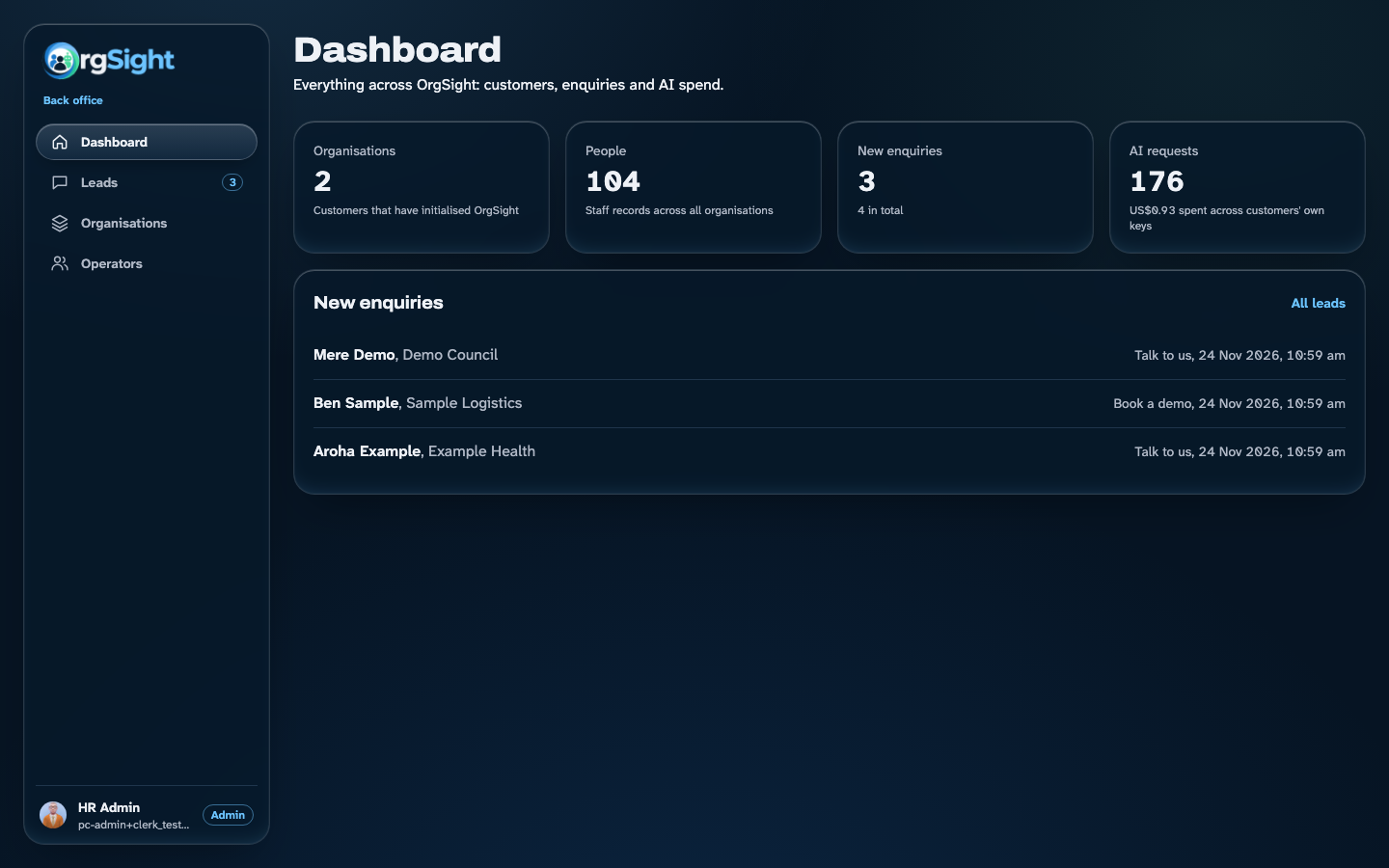
The Dashboard is the first screen you see. It shows how large OrgSight is across all customers, and puts the newest unanswered enquiries in front of you. Every operator can see it.How to use it
Check the totals
- Open Dashboard.
- Read the four tiles: Organisations, People, New enquiries and AI requests.
Follow up new enquiries
- Look at the New enquiries card. It lists up to five enquiries that are still marked new, newest first.
- Select All leads to open Leads, where you can read each message and change its status.
Features
- Organisations: the number of customers that have set up OrgSight.
- People: staff records across all organisations. People who have left a customer’s HR system aren’t counted.
- New enquiries: enquiries nobody has marked contacted or closed, with the total number received below it.
- AI requests: requests made across all organisations, with what they cost. Each customer pays for AI through their own provider account, so this is their spend, not OrgSight’s.
- New enquiries card: each line shows the person’s name, their organisation if they gave one, which form they used and when.
- Leads badge: the Leads item in the menu shows a count while there are new enquiries.
Why it works this way
The tiles are totals, not lists, because the back office shows the scale of each customer and never their staff records. New enquiries are on the first screen because a reply is the one thing here that someone is waiting for.Tips
- An empty New enquiries card means every enquiry has been dealt with, or none has arrived yet.
- The figures update on their own as data changes. You don’t need to reload.