

What it’s for
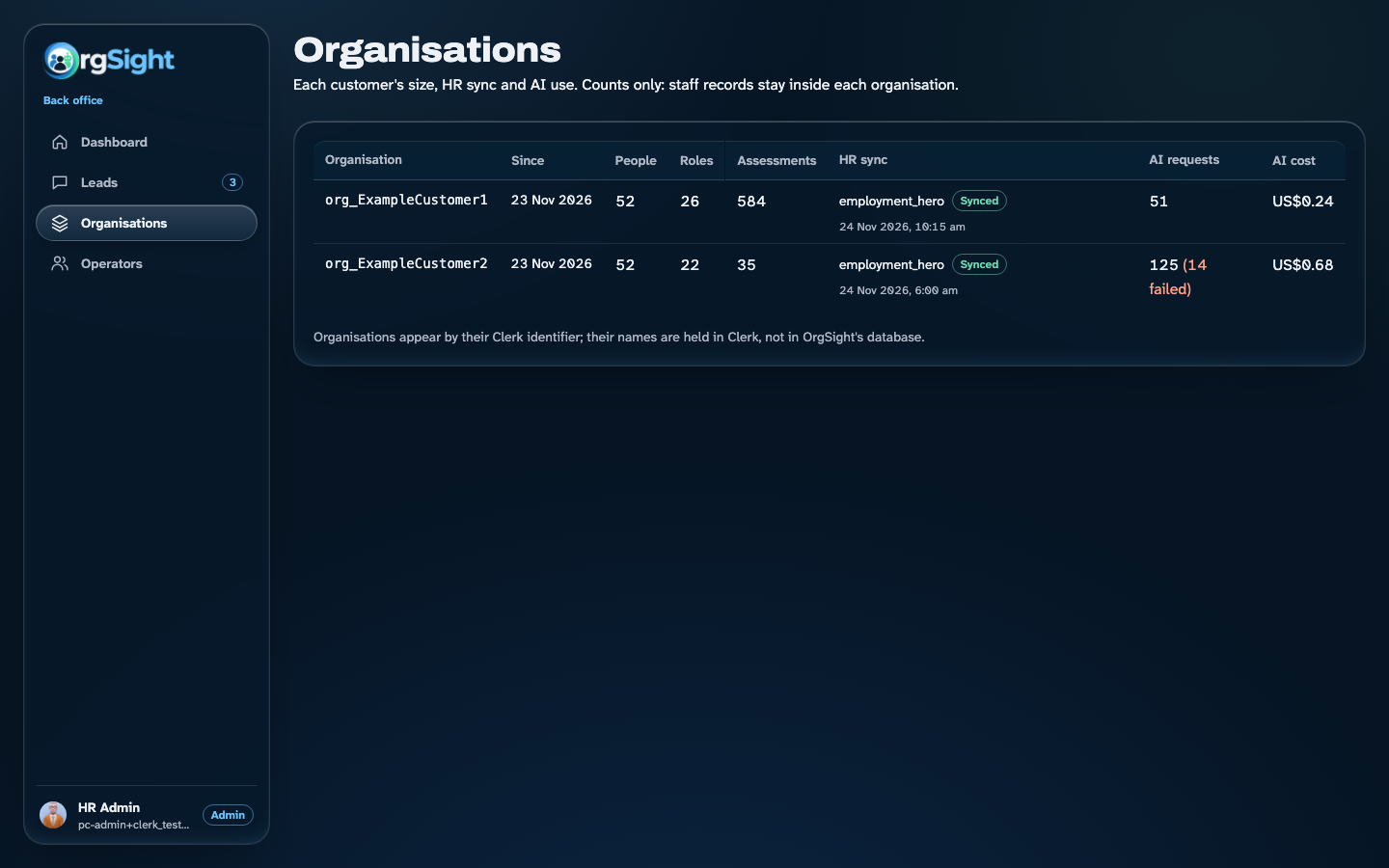
Organisations has one row for each customer that has set up OrgSight. Use it to see how large each customer is, spot an HR sync that has stopped working, and see how much AI each one is using. Every operator can see it. Nothing on this screen can be changed.How to use it
Check a customer’s HR sync
- Open Organisations.
- Find the customer’s row and look at HR sync. It names each connection and shows a badge.
- Read the badge: Synced with the time of the last sync, Failed, Never synced or Off.
Check AI use
- Look at AI requests for the number of requests the organisation has made. Failed requests are shown in red beside it.
- Look at AI cost for what those requests cost, in US dollars.
Features
- Organisation: the customer’s identifier, starting with
org_. - Since: the date the customer set up OrgSight.
- People: current staff records. People who have left the customer’s HR system aren’t counted.
- Roles: the number of roles the customer has defined.
- Assessments: the number of skill ratings recorded.
- HR sync: each HR connection and its state.
- AI requests and AI cost: how much the customer has used AI features.
Why it works this way
The screen shows counts only. A customer’s staff records, skills and assessments stay inside their organisation, and no operator can read them here. That keeps each customer’s data separate while still letting you see whether their setup is healthy. Organisations appear by identifier because their names are held in the sign-in service, not in OrgSight’s database. AI cost is the customer’s own spend. Each customer connects their own AI provider account, and OrgSight records what each request cost them.Tips
- Never synced on a new customer usually means they haven’t run their first sync yet.
- Failed means the last sync returned an error. The customer can see the reason in their own app, under Settings, then Integrations.
- A customer with no AI requests may simply not have turned AI features on. They’re optional.
- To match an identifier to a customer’s name, look it up in the sign-in service’s dashboard.