

What it’s for
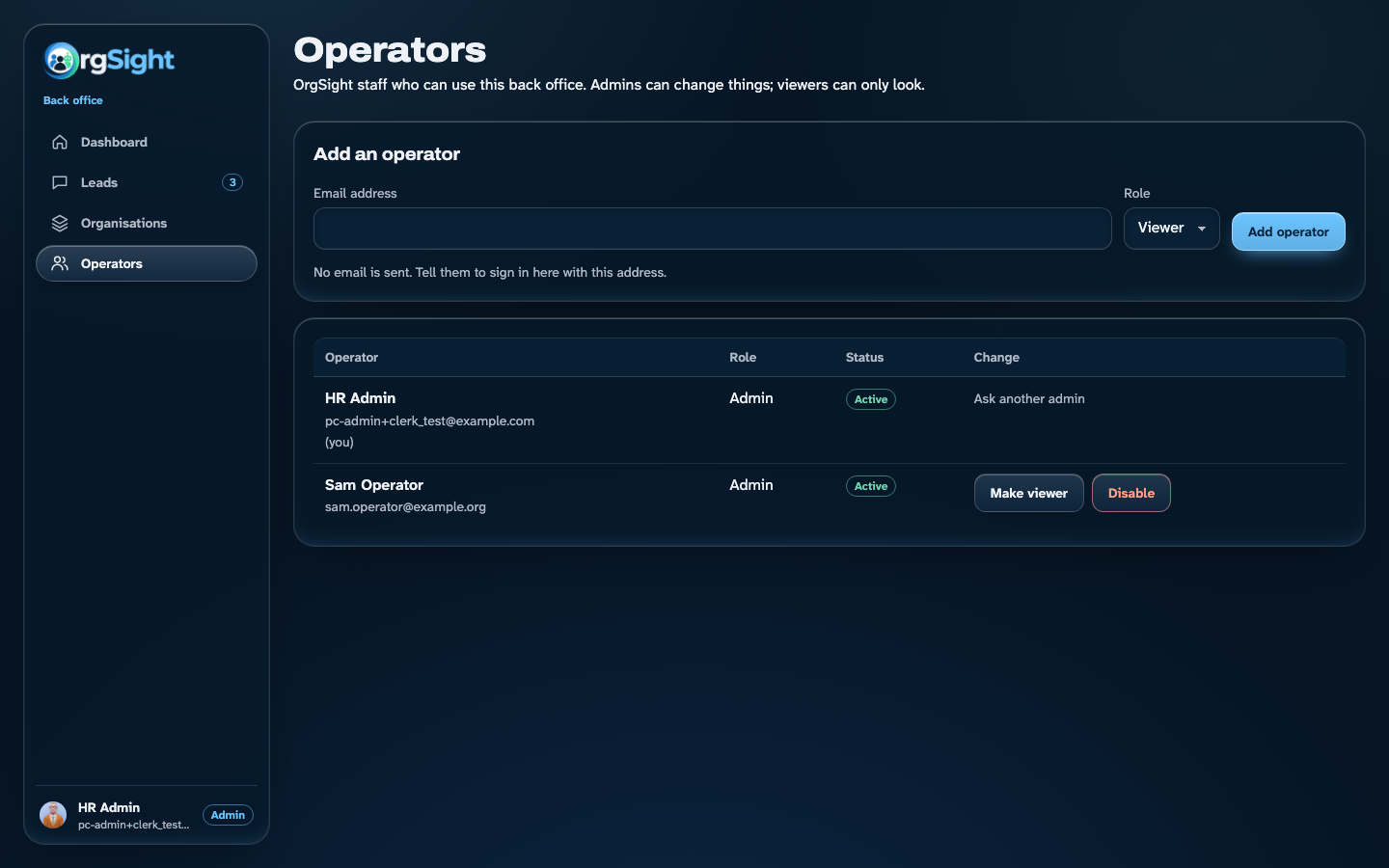
Operators lists the OrgSight staff who can use the back office. Admins use it to add people, choose whether they can change things or only look, and switch off access when someone leaves. Viewers can see the list but not change it.How to use it
Add an operator
- Open Operators.
- Under Add an operator, enter the person’s Email address.
- Choose a Role: Viewer or Admin.
- Select Add operator.
- Tell the person to sign in to the back office with that address. No email is sent to them.
Change someone’s role
- Find the person in the list.
- Select Make admin or Make viewer.
Remove or restore access
- Find the person in the list.
- Select Disable. They can no longer use the back office.
- To give access back, select Re-enable.
Features
- Role: Admin can change things across the back office. Viewer can read everything and change nothing.
- Status: Active, Not signed in yet for someone who has been added but hasn’t signed in, or Disabled.
- You: your own row is marked, and shows Ask another admin in place of the change buttons.
- Add an operator: shown to admins only.
Why it works this way
Access is by a list of operators, not by membership of a customer organisation, so being an admin of a customer never gives a view across all customers. The first admins come from a setting on the deployment, so a new installation can be reached before anyone is in the list. The first time one of them signs in, they’re recorded in the list like everyone else. You can’t change your own role or disable yourself. That stops the last admin locking everyone out by accident. Disabling keeps the person’s row, so you can see who had access and restore it later.Tips
- An address can only be added once. If someone is already listed, change their role or status instead.
- The address must match the one the person signs in with. If they see Not an operator, the screen shows the address they used.
- Keep at least two admins, so one can change the other’s access.