

What it’s for
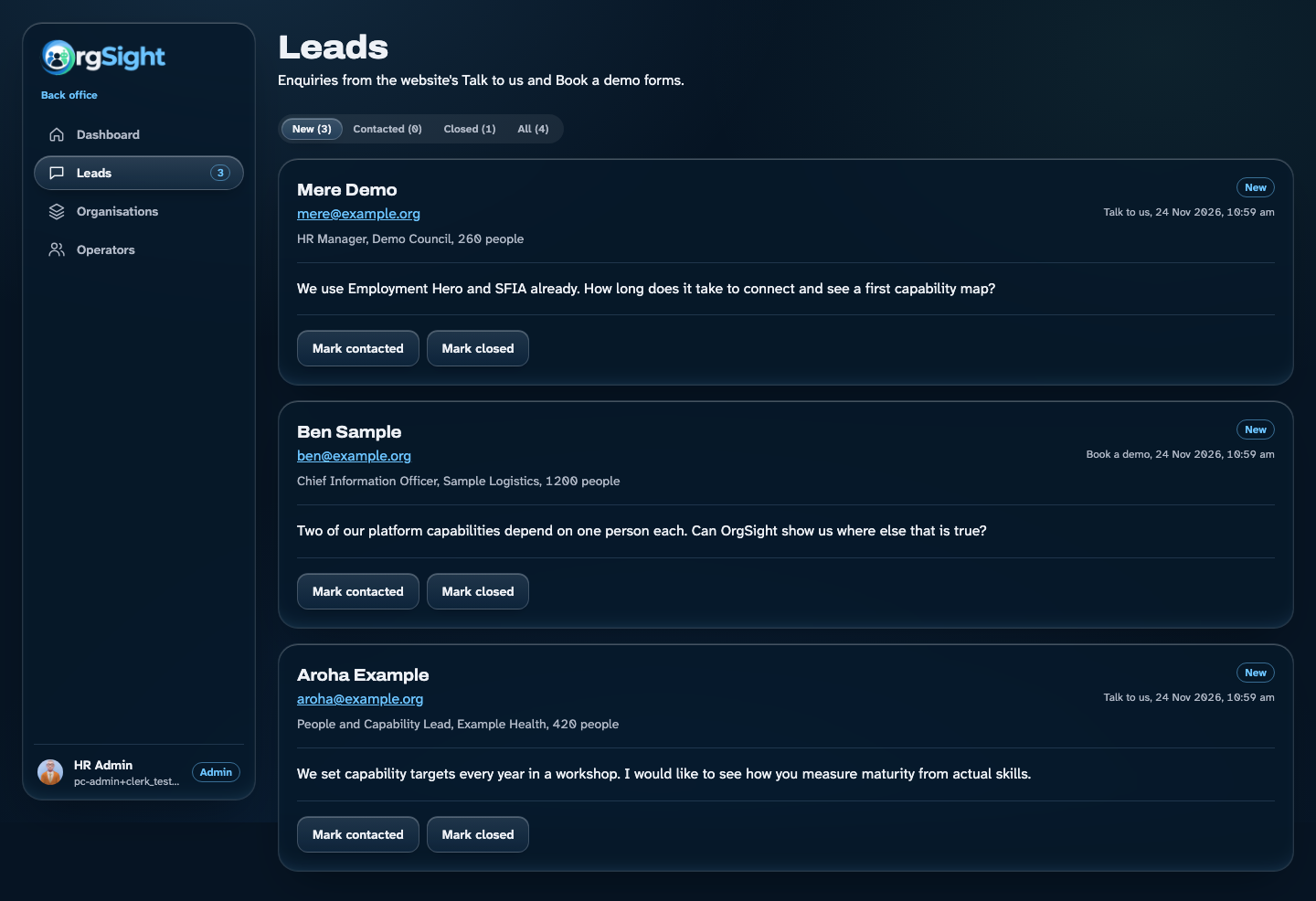
Leads lists every enquiry sent from the website’s Talk to us and Book a demo forms. Use it to see who needs a reply and to record that someone has replied. Every operator can read enquiries. Only admins can change their status.How to use it
Find enquiries that need a reply
- Open Leads. The New filter is selected first.
- Read each card: the person’s name, email address, role, organisation and how many people work there, where they gave them. Their message is below.
- Select the email address to start an email to them in your own mail app.
Record what happened
- Once you’ve replied, select Mark contacted on the card.
- When the conversation is finished, select Mark closed.
- To put an enquiry back, open the Contacted or Closed filter and select Mark new.
See everything
- Choose Contacted, Closed or All to change the filter. Each shows how many enquiries it holds.
Features
- Status filter: New, Contacted, Closed and All, each with a count.
- Status badge: shows where each enquiry stands.
- Source: whether it came from Talk to us or Book a demo, with the date and time.
- Message: what the person wrote, shown in full.
- Mark buttons: change the status. Shown to admins only.
Why it works this way
The website saves enquiries into OrgSight’s own database and sends no email, so this screen is the only place they appear. A status on each enquiry means the team can see at a glance what’s unanswered, without a shared inbox. Status changes are limited to admins so that viewers can follow the pipeline without altering it.Tips
- The list shows the 200 most recent enquiries.
- Booking a time on the demo calendar doesn’t create an enquiry here. Bookings arrive in the calendar only.
- The website accepts up to three enquiries an hour from one email address. A person who sends more is asked to try again later.
- Nothing here sends a reply for you. Reply from your own email, then mark the enquiry.